Eye Tracker
(1) aSeeStudio software installation
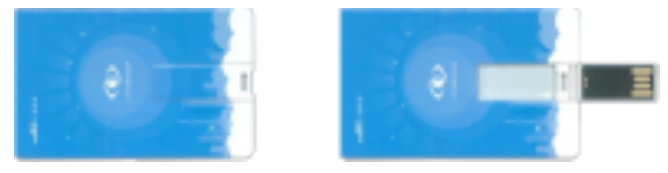
- Main accessory description A) Card-type USB drive (it is recommended to copy the files to the computer in advance)
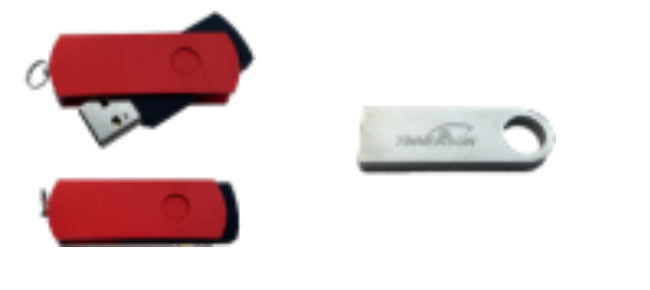
B) Dongle (connect to the computer's USB port)
- Connect the eye tracker to a stable USB 3.0 port on the computer
- Install all the .exe applications in the [Runtime environment] folder
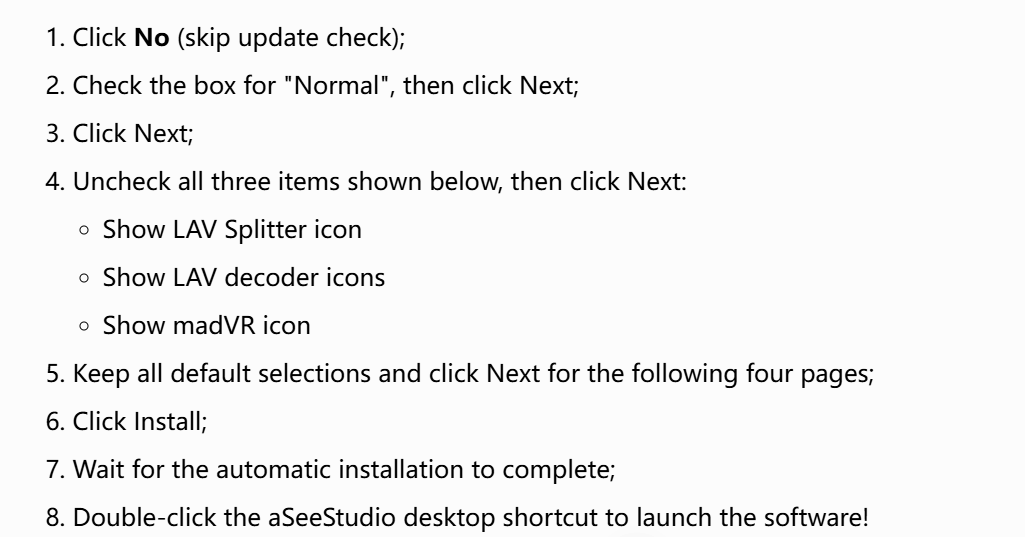
- Double-click the aSeeStudio_Setup.exe software installer A) Wait for the package to unpack, then select the region and installation language B) Click Next C) Click Next D) Select the installation path (Chinese paths are not supported), then click Install E) During the process, you will be prompted to install [K-Lite Codec Pack]
(2) Activation and software functions
- Insert the dongle;
- Start aSeeStudio and enter the key if required (check the TXT document on the bundled card-type USB drive).
- Click the "Project Information" button at the top to enter the experiment project's information interface;
- Click the "Project Management" button to enter the project list;
- Click the "New Project" button, and a new dialog will pop up; keep the default parameters;
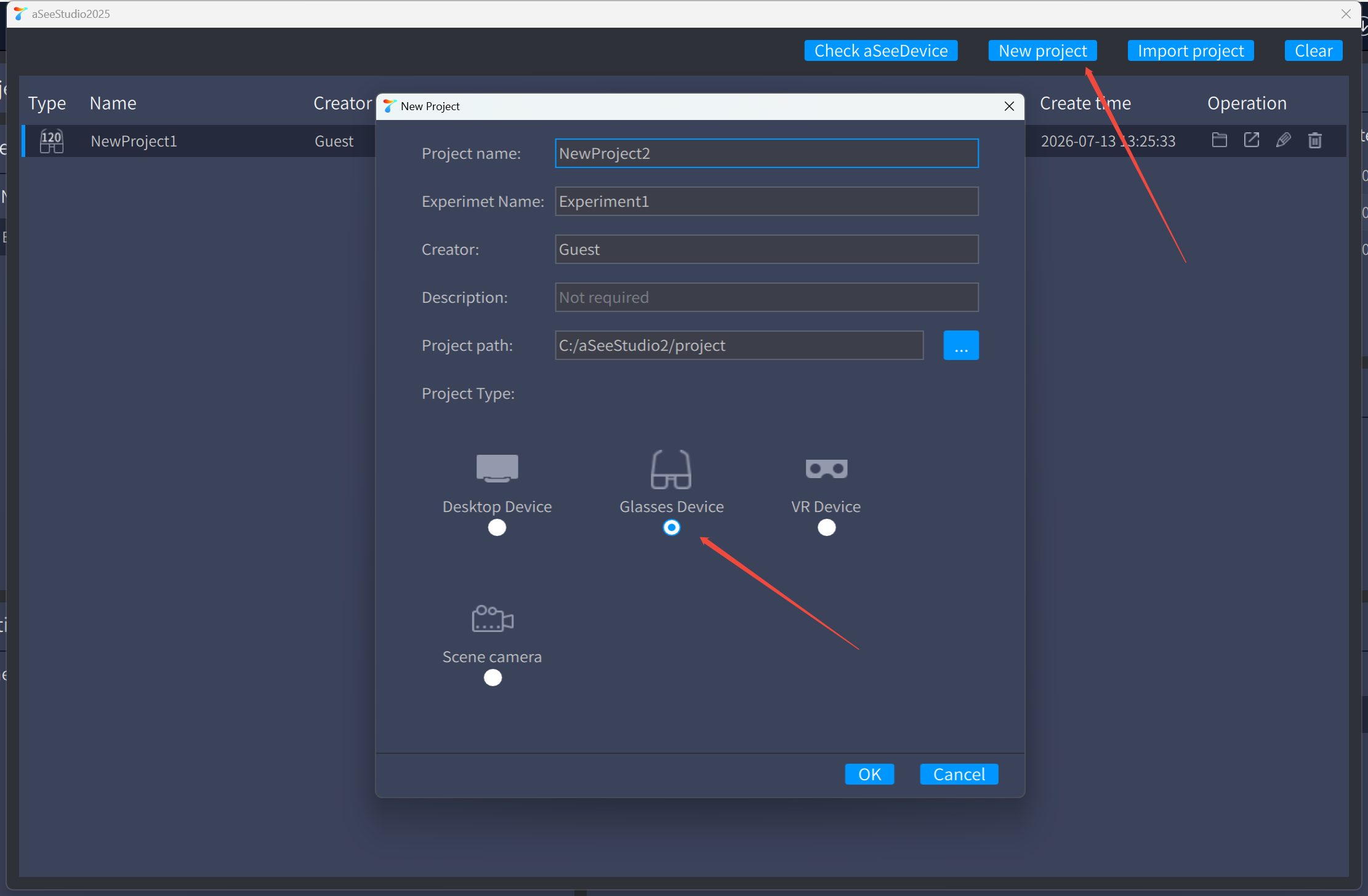
- Click "Create" to finish creation, and this newly created project will be opened as the current project.
- Click Global Settings, select "Trigger", check "Receive Data", select the 10.1.1.198 IP in the dropdown, keep the port at its default, and click OK;
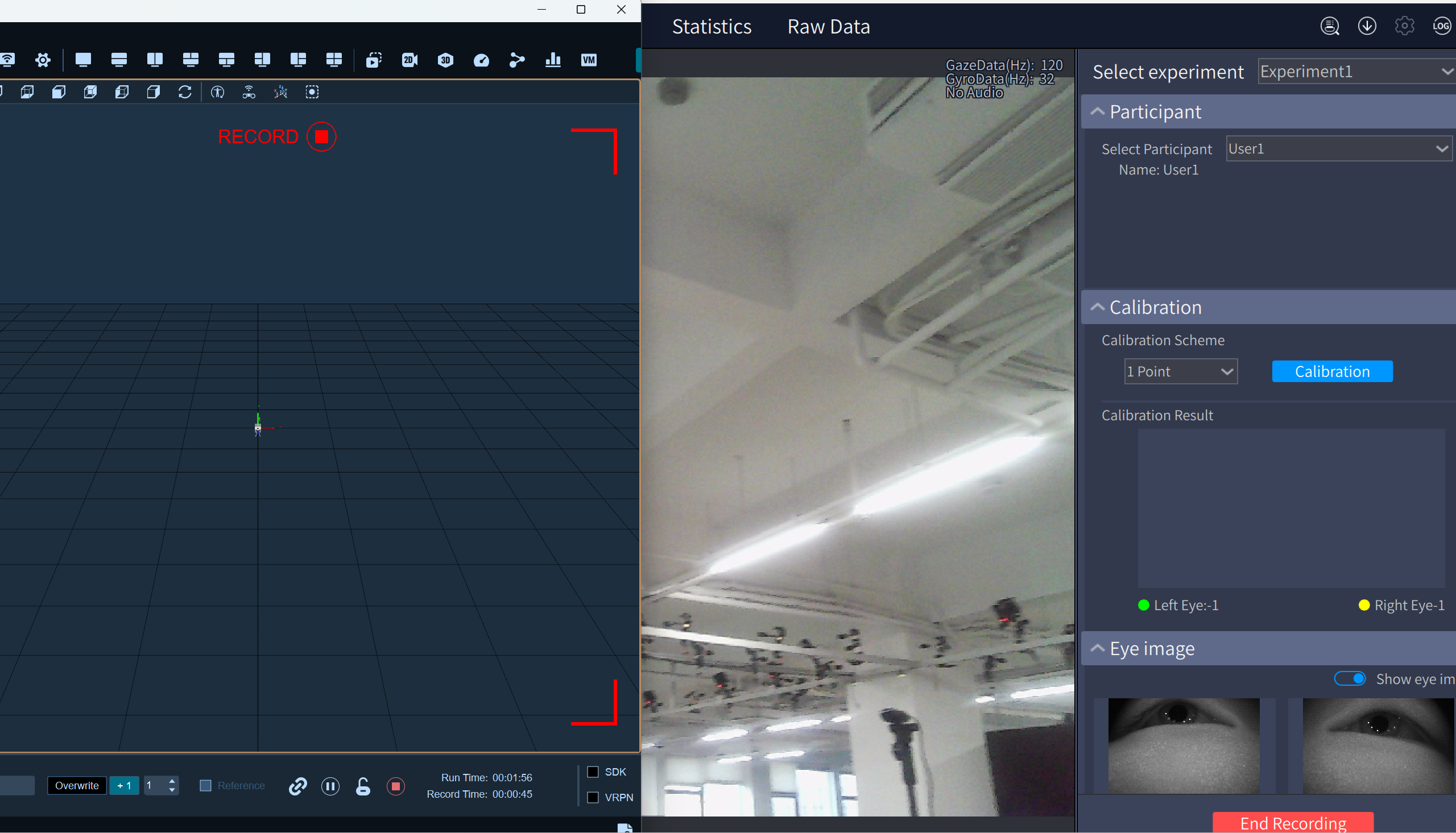
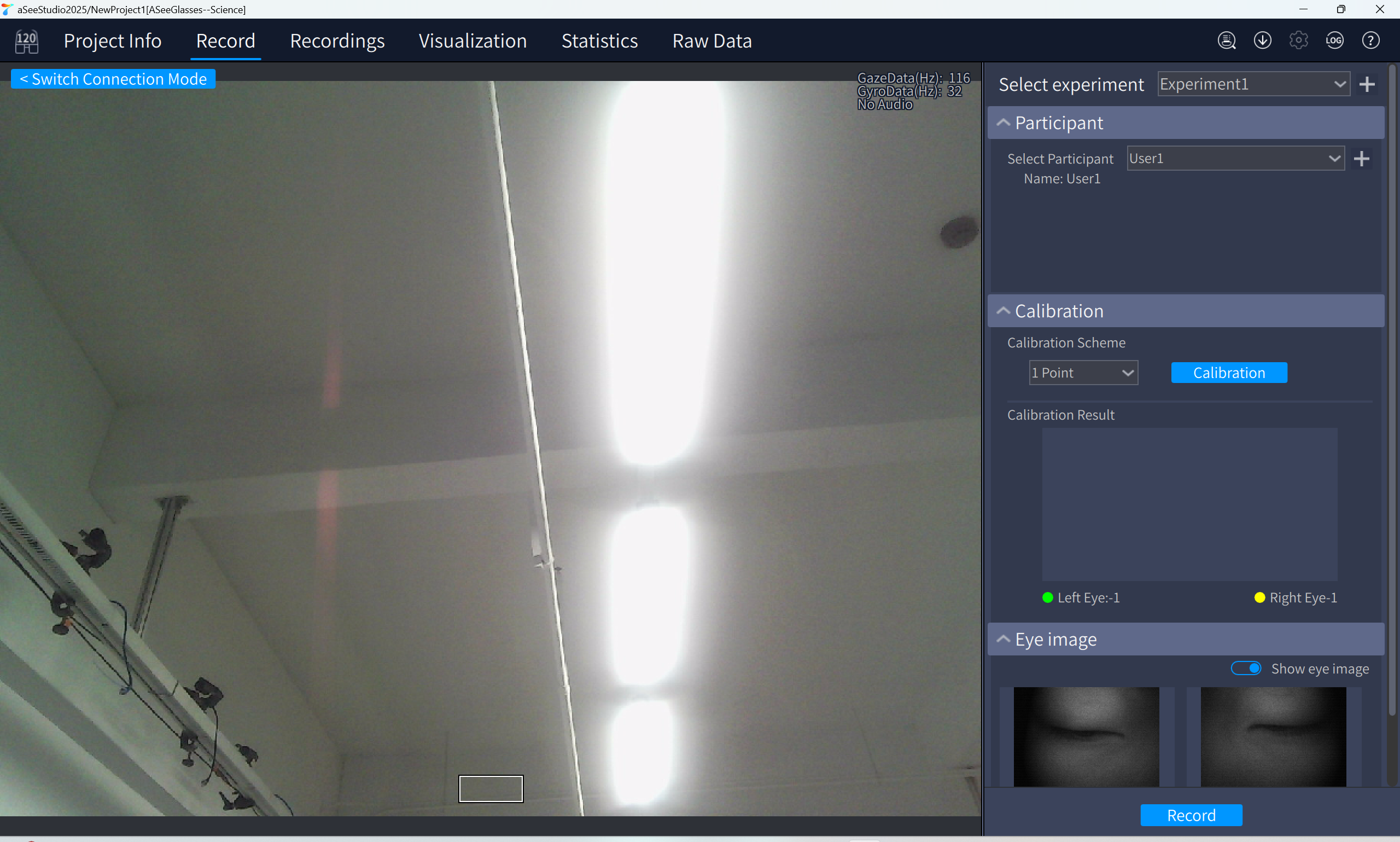
- Click "Experiment Recording" at the top and wait for it to start;
(3) Synchronized recording of the software and the eye tracker
-
Open XINGYING, connect the cameras, and click the Data Broadcast panel;
-
Scroll down to find aSee and enable this function, keeping the port at its default;
-
In XINGYING, click 'Play', enter the file name, and then click 'Record';